Support
The answers below cover the questions we hear most. Anything else — or anything stuck — email support@alchemizetv.com and a human will reply.
How do I pair my TV?
- Install the AlchemizeTV player on your TV (see Download) and open it — the TV shows a pairing code.
- On the web, sign in to your account and open Connections.
- Choose Pair a new device, enter the code from the TV, and approve it.
- The TV configures itself — its lineup, guide, and settings arrive on their own.
Every TV gets its own login, born at pairing. Revoking a TV in Connections signs that TV out without touching your others.
How does guide mapping work?
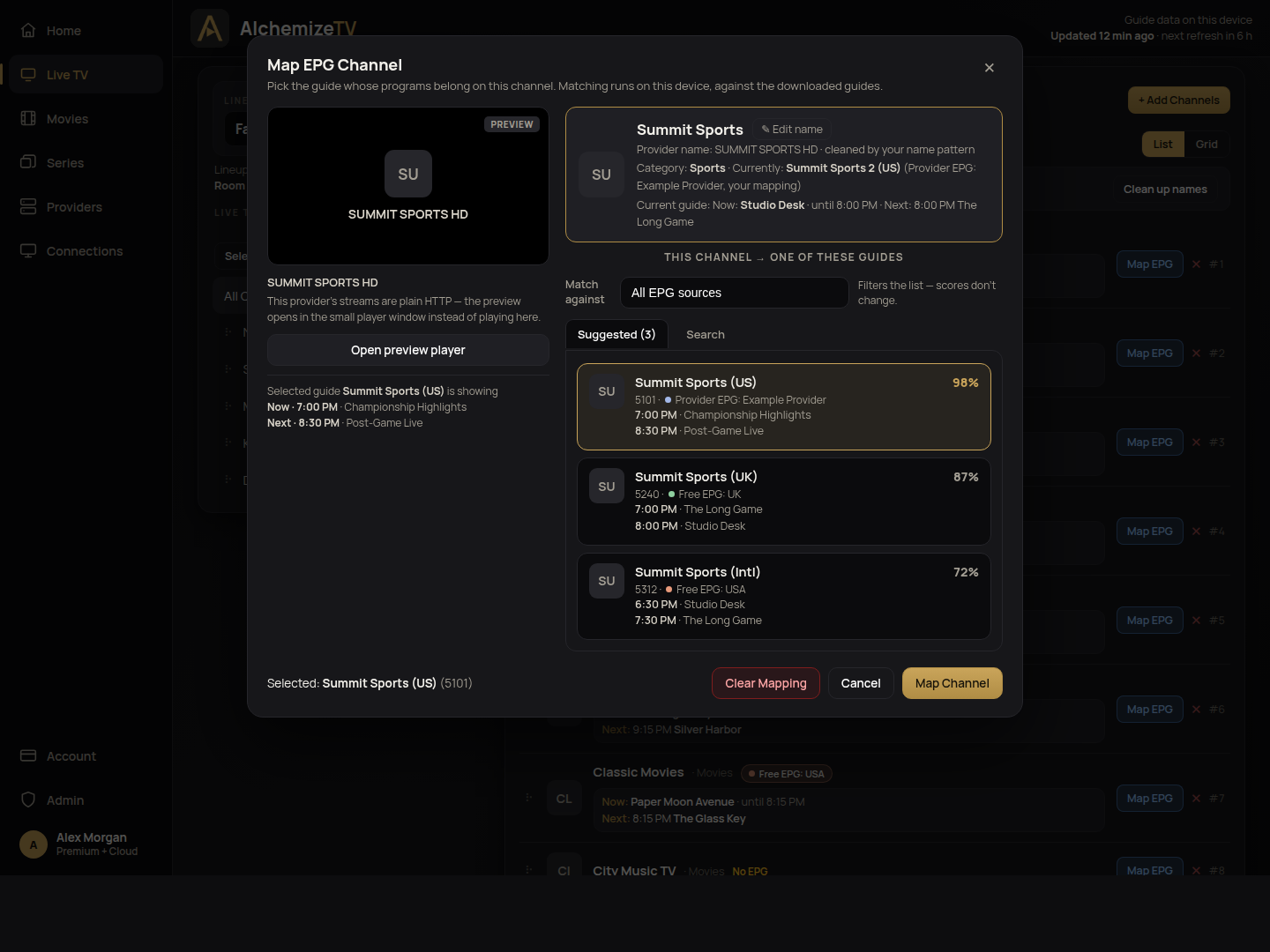
A channel plays fine without a guide — mapping is what attaches the right program listings to it. On the web, open Live TV, pick a channel, and choose Map EPG: you’ll see the best guide candidates with match scores, and what each one is showing right now, so you can pick with confidence. Auto-Map does the whole category at once. Your TVs pick new mapping up at the next guide refresh.
I only have an M3U link — can I use AlchemizeTV?
AlchemizeTV works with Xtream Codes subscriptions only — traditional M3U playlist IPTV isn’t supported. The good news: most providers run both on the same subscription. Ask your provider for your Xtream Codes details (server address, username, and password) for the subscription you already have — that’s all AlchemizeTV needs.
My guide is empty, wrong, or out of date — first steps
- On the TV, press Refresh guide and let it finish — it now tells you, by name, any source that failed.
- On the web, check the channel’s mapping in Live TV — a wrong match is the usual cause of a wrong guide, and no programs at all usually means the channel isn’t mapped yet.
- Give a fresh source a few minutes: guides download in full, and big ones take a little while.
- Programs shifted by a fixed amount? Guide sources can carry a time shift — adjust it on the source (on the web under Providers, or on the TV under Guide Sources).
What happens if my Cloud subscription lapses?
Nothing is deleted. Your players keep working with what they already have; the Premium and Cloud features lock until you subscribe again, and your web setup stays exactly as you left it. Resubscribing restores everything. The same applies when a free trial month ends.
Can I try just the free version?
Every new account starts with a free month of Premium + Cloud, so everything is unlocked at first. When the month ends, you land on Free automatically — nothing is deleted, the extra features simply lock, and Free never expires, so take as long as you like to judge it. Once the player is installed, it also works with no account at all: add your provider in the player instead.
How many TVs can I use?
- Free — pair as many TVs as you like; each receives the setup you prepared on the web when you pair it — or set it up on the TV itself, if you prefer.
- Premium — the player’s full features on up to 5 TVs.
- Premium + Cloud — unlimited players, all Premium, all synced from the web.
Manual players (like TiviMate, added by hand in Connections) play your lineup with your provider’s own guide; the app features and sync apply to the AlchemizeTV player itself.
I forgot my password
Use Forgot password on the log in screen — we’ll email you a reset link. If the email doesn’t arrive, check spam, then write to us.
Still stuck?
Email support@alchemizetv.com with your account email and what you were doing — screenshots help. During the beta, support is handled by the person who builds the product.